How to clip on PS5, and what to do with a long session
Written by the developer of CutBench, so this is not an independent review. The PS5 screens below are photos of my own console, taken on 15 November 2026.
Press the create button and choose Save Recent Gameplay to keep anything from the last 15 seconds to the last hour, or Start New Recording for up to an hour. For a longer session, broadcast it to Twitch or YouTube, then give the VOD link to CutBench on a Windows PC; it ranks the best moments into vertical clips.
Two settings before you play
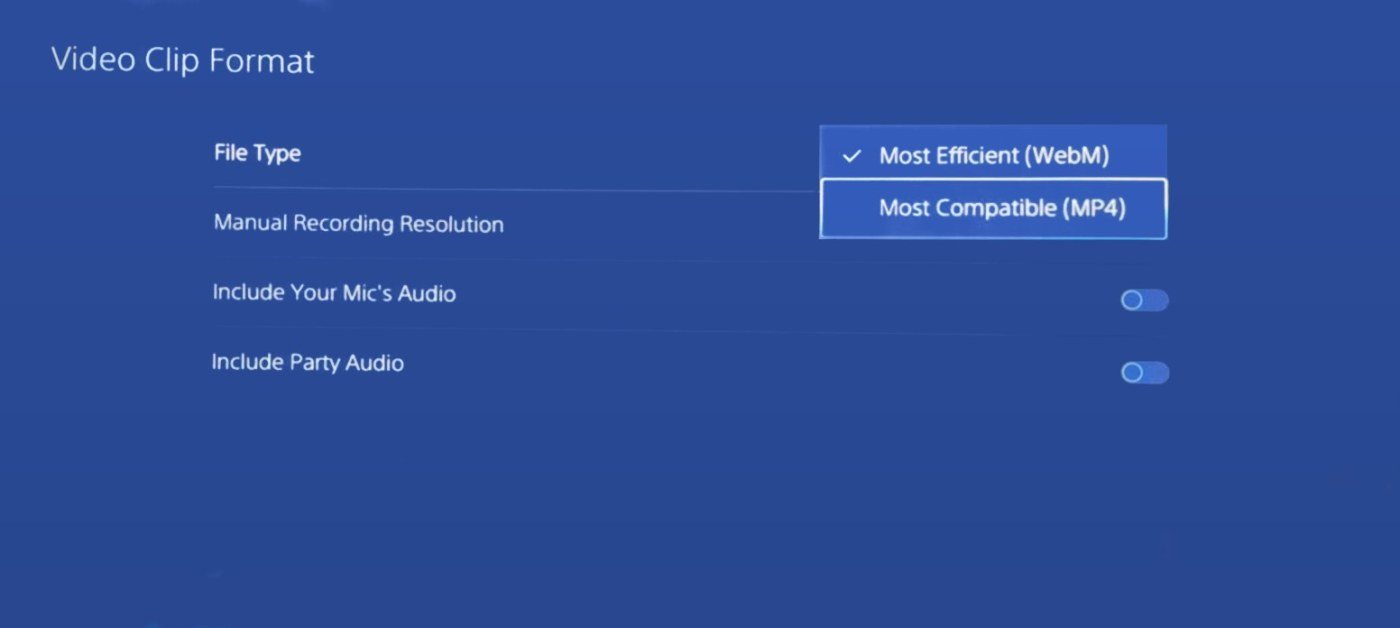
Change both before the session you plan to clip. In these photos the highlighted line is the one to pick.
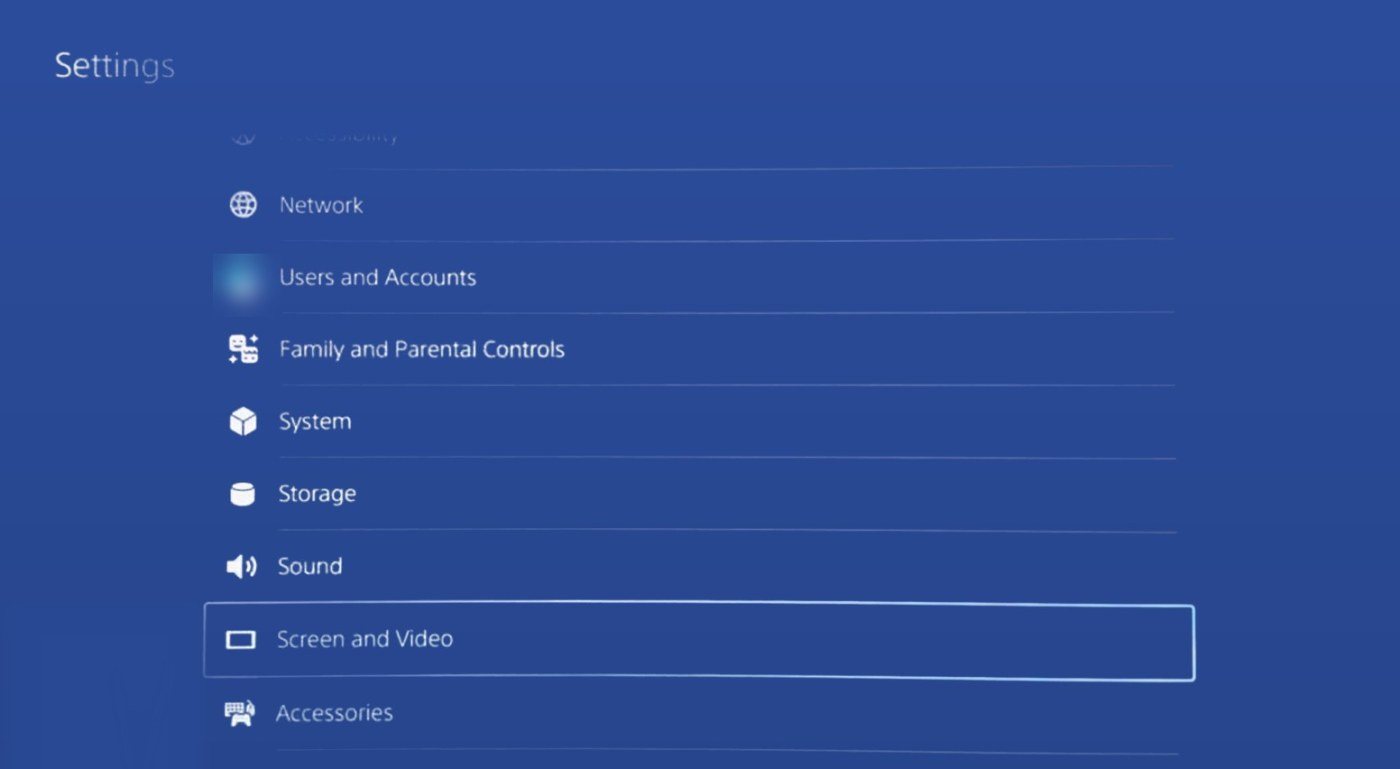
Turn HDR off for the sessions you plan to clip
A clip recorded in HDR can look grey and washed out in an editor or on a phone that shows it in standard range.
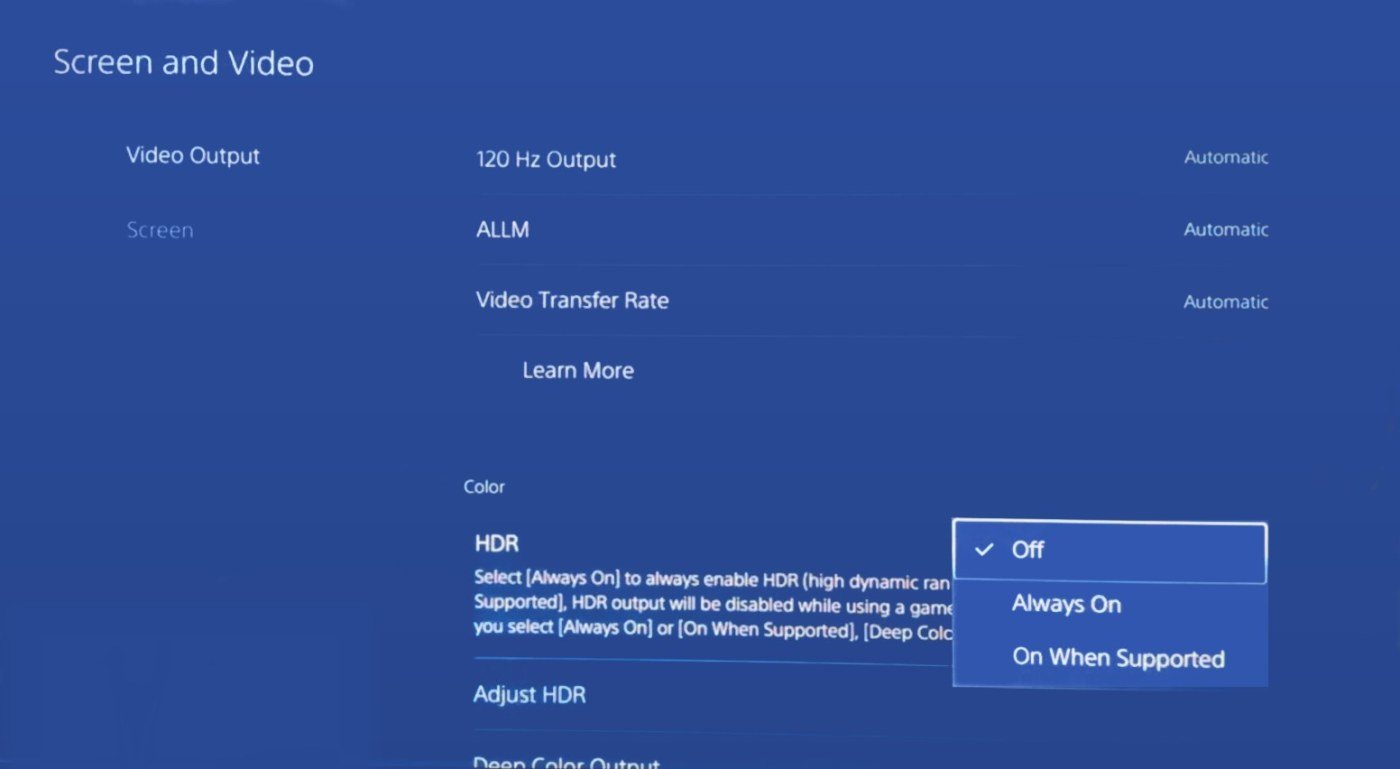
Save clips as MP4
WebM files are smaller, but MP4 opens in practically any editor or phone app. A saved clip keeps its format, so change this before you record.
Save a moment
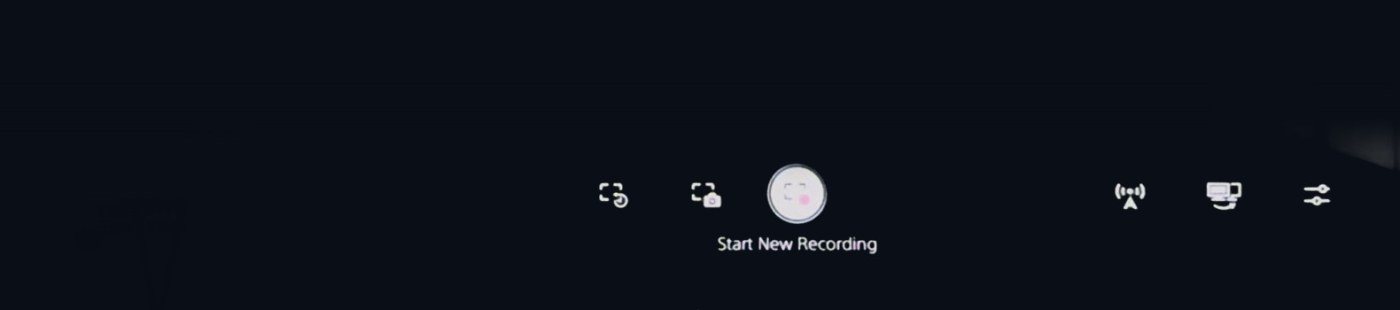
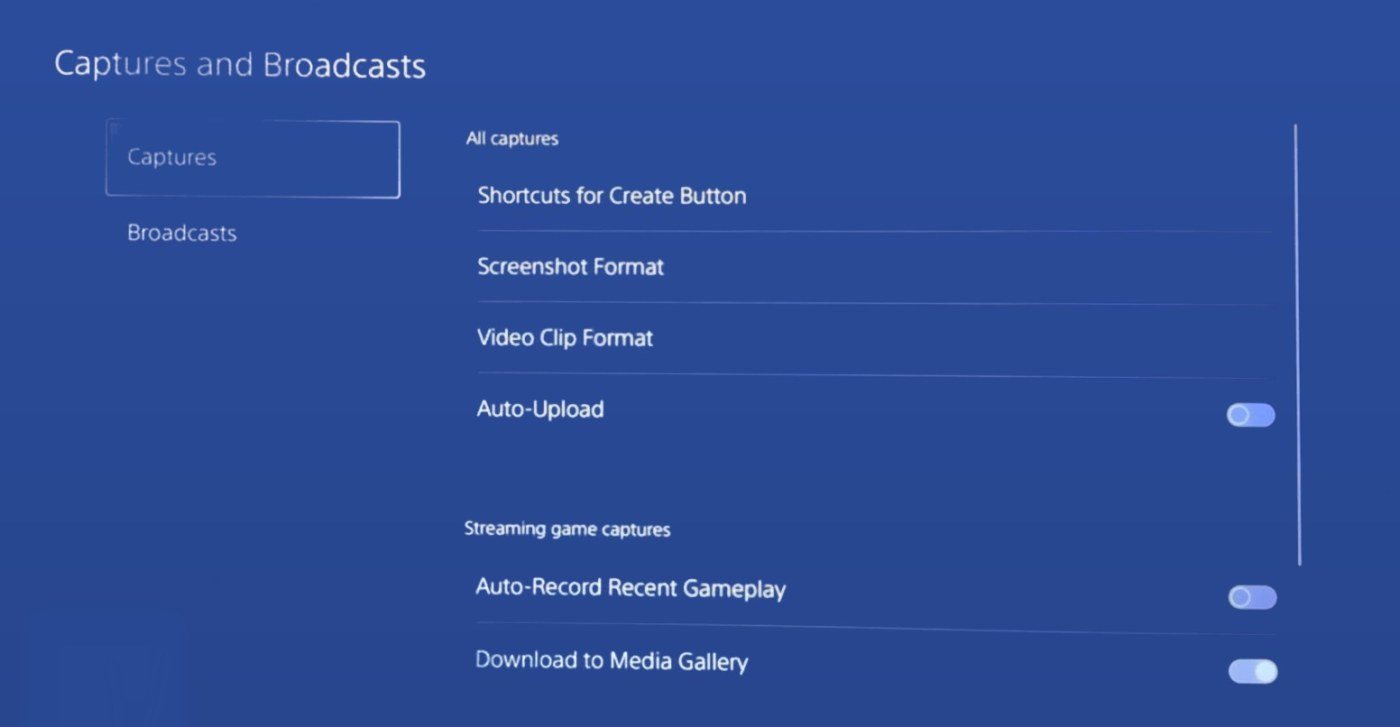
Press the create button on the DualSense controller. Save Recent Gameplay keeps anything from the last 15 seconds up to the last hour, because the console records in the background all the time. Start New Recording records up to an hour from that point; to stop, press the create button again and choose Stop Recording. Some scenes are blocked from capture and are left out of the clip.
Get a clip off the console
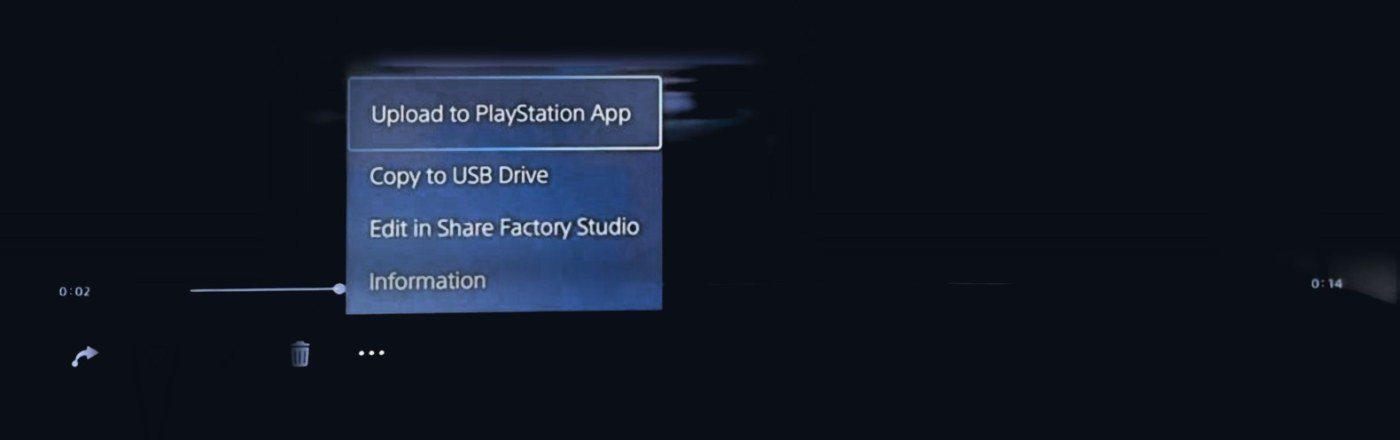
- To a PC. Select the clip in Media Gallery, then … More › Copy to USB Drive. Use a drive formatted as exFAT: FAT32 cannot hold a file over 4 GB, and a long recording can be larger than that.
- To a phone. Turn on Auto-Upload on the Captures screen above, and leave the linked console in rest mode with Stay Connected to the Internet on. New clips up to 1920 × 1080 and up to 3 minutes then upload to the PlayStation App and stay there for 14 days. A longer clip, or one above 1080p, goes by USB drive.
A whole session into vertical clips
An hour is the most a PS5 keeps in one go, and an evening of play runs longer. There are two ways to get a whole session to the PC, where CutBench turns it into vertical clips.
| Stream, then the link | A capture card and OBS | |
|---|---|---|
| What you need | a Twitch or YouTube account | a capture card, OBS on the PC |
| One recording runs | the whole stream | the whole session |
| Who sees it | public on Twitch | only you |
| Extra cost | none | a capture card |
Route 1: stream, then paste the link
Link Twitch or YouTube once
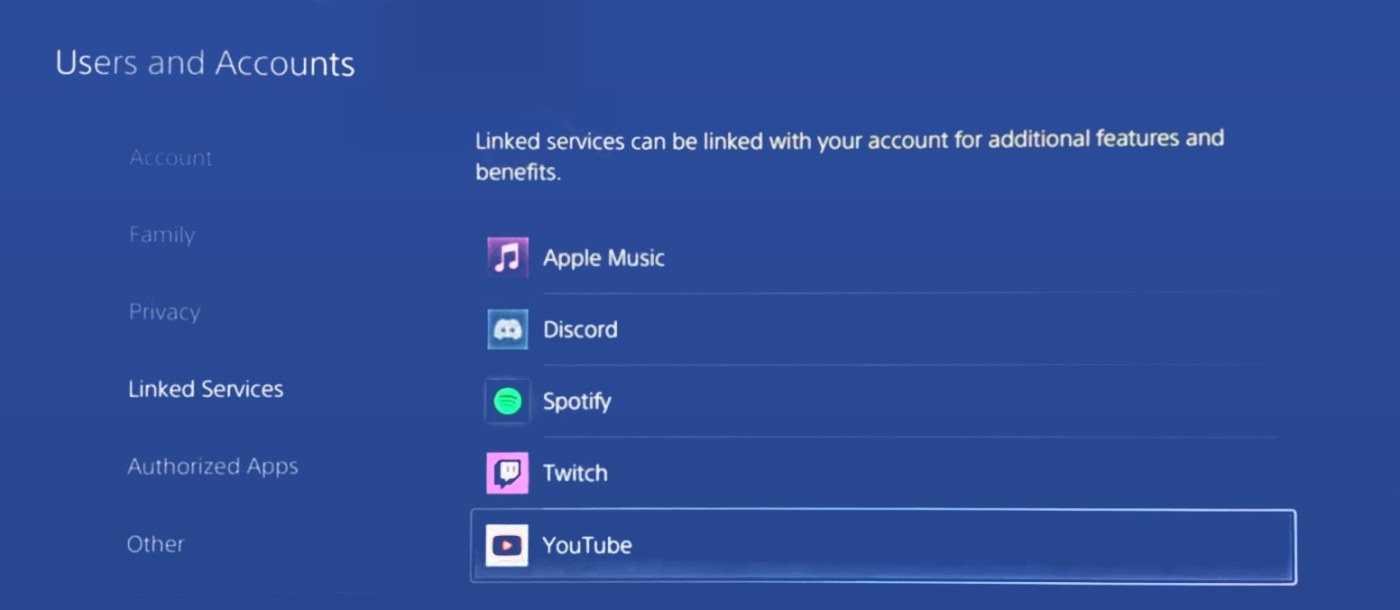
On Twitch, keep the VOD
Turn on Store Past Broadcasts in the Stream Settings of Twitch’s Creator Dashboard, on the web, before going live. Twitch then keeps the VOD for 7 days, or 14 for Affiliates and 60 for Partners and Prime or Turbo users, so CutBench has to download it before then.
Go live from the game
In the game, press the create button, choose Broadcast, pick the service and go live.
If you talk while you play, include your microphone in the broadcast: Settings › Captures and Broadcasts › Broadcasts › Audio. CutBench puts subtitles wherever someone speaks.
Keep the radio low. Twitch mutes stretches of a VOD in which it recognises licensed music, and the radio in GTA games plays licensed songs; a muted stretch gives CutBench less to go on.
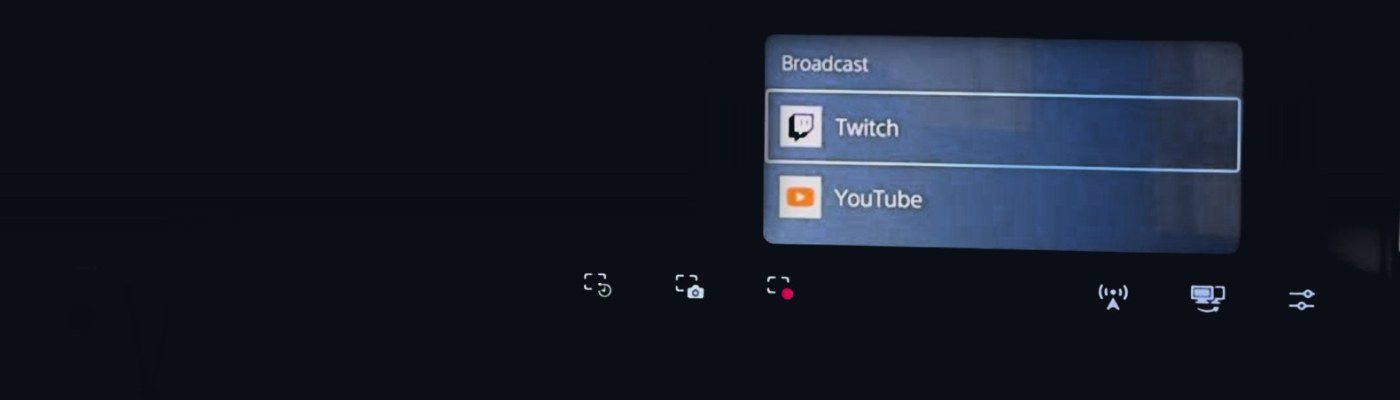
Paste the VOD link into CutBench
When the stream has ended, paste the link to its VOD into a new job in CutBench.
CutBench downloads the VOD to the PC, works through the whole recording and ranks the moments into vertical clips.
A YouTube broadcast has to be public or unlisted for CutBench to download it.

On Twitch a live broadcast is public, and its VOD is published by default; CutBench needs it to stay published. To keep a session off the internet, a capture card feeding OBS on the PC records it as one file, and CutBench takes that file too.
Route 2: a capture card and OBS
Turn HDCP off first, or the card shows a black screen
Switch it back on when you are done capturing.
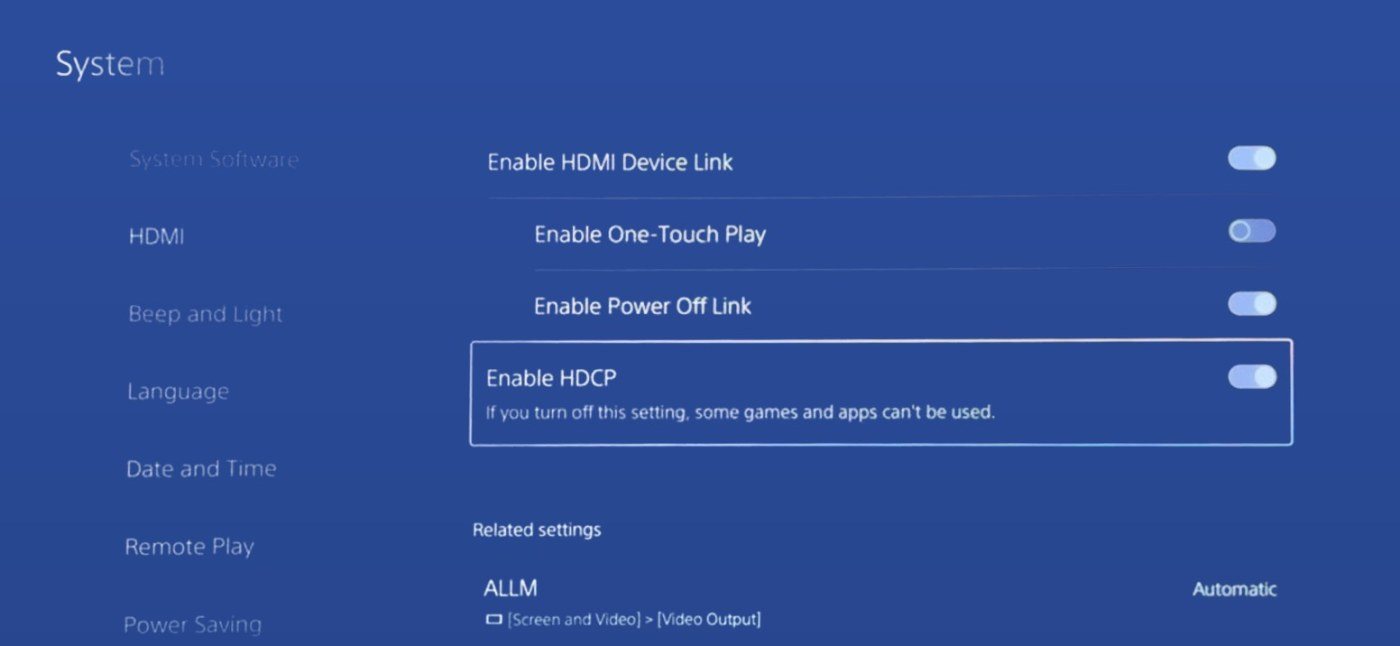
Record the session in OBS
Console into the card’s HDMI IN, the card’s HDMI OUT to the TV, the card’s USB to the PC. Record the session in OBS, then drag the file into CutBench.
Checked on 15 November 2026 on the official pages: PlayStation’s pages on capturing, Media Gallery, the PlayStation App, broadcasting and USB drives; Twitch’s page on past broadcasts; and Elgato’s PlayStation 5 setup guide.
Both routes need a Windows PC, and CutBench is built for an NVIDIA graphics card with 6 GB of VRAM or more; on AMD or Intel Arc graphics it runs on the processor, tens of times slower. Without such a PC, a cloud clip maker that takes a Twitch VOD is the simpler route.
What CutBench gives you
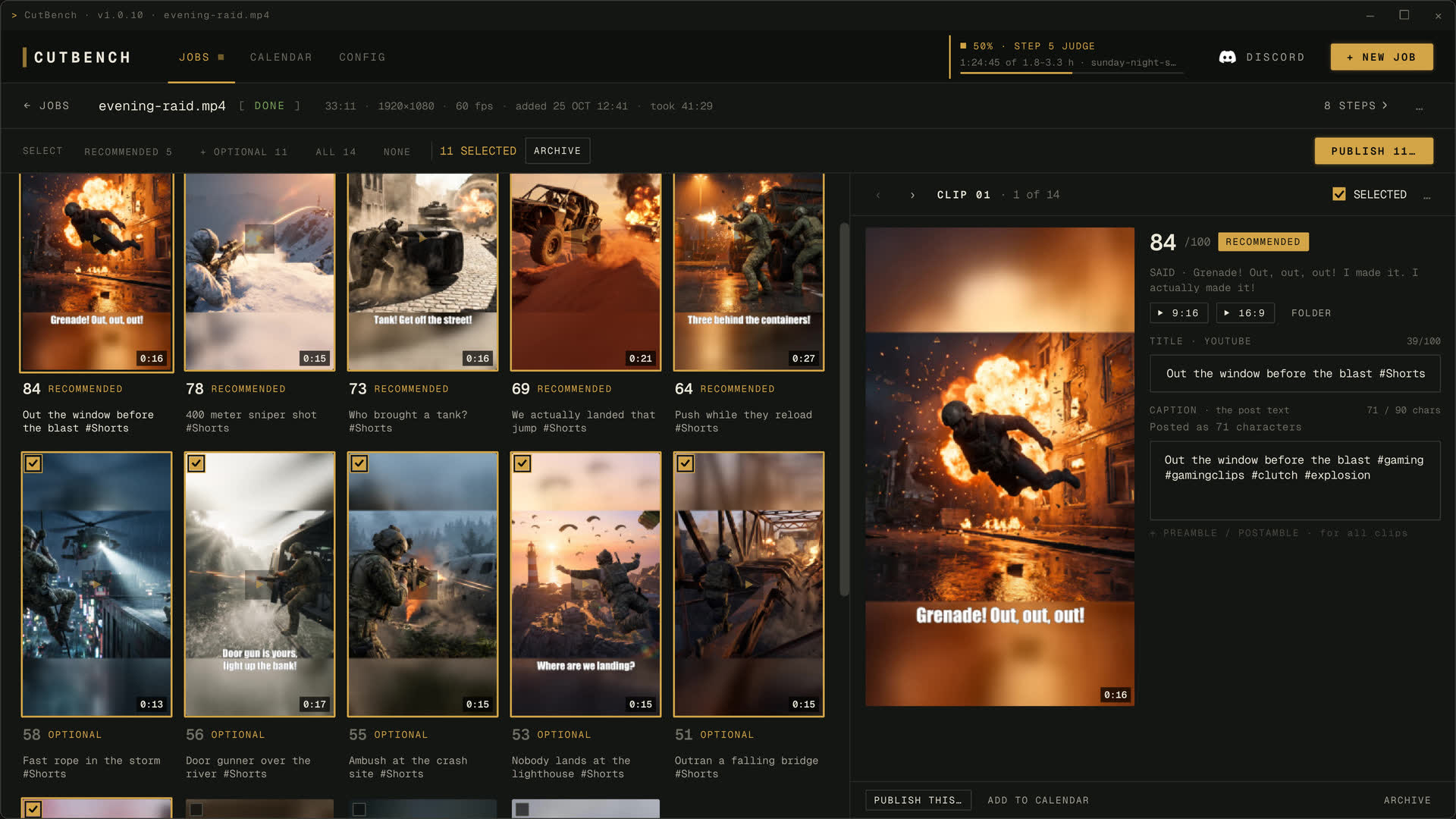
CutBench works through the whole recording and ranks every candidate moment. The top ones become vertical clips with subtitles wherever someone speaks, each with a score and a label: recommended, optional, or skip with a plain reason. On an RTX 3080, a 3-hour recording takes 1 h 53 min to 3 h 28 min, so it is a job to start before bed, not a live tool.
From a 23-minute GTA Online session, most of it riding and driving, CutBench cut two clips, 17 and 12 seconds long. Here the recording and the clips are shortened and without sound. GTA 6 is not out yet; this page will show GTA 6 clips once it is.
Clips that get watched
Numbers from our own YouTube Shorts, almost all of them clips CutBench cut:
- Length. On 193 Shorts, clips of 21 to 26 seconds had the highest median views, 726, against 216 to 691 in the other length bands.
- The start. Comparing the top and bottom thirds by views, 56 Shorts each, the share of viewers still watching differs from the first second, and after 25 seconds the difference is no longer significant.
- Loops. The 11 Shorts that viewers watched more than once on average had a median of 1,034 views against 475 for the rest; they were also shorter, 17 seconds against 33.
For GTA, that means: start the clip on the crash, the jump or the shot, not on the drive towards it, and stop it when the moment is over.
When something goes wrong
- The clip looks grey and washed out.
- If HDR was on while recording, turn it off and record again.
- CutBench can’t open the Twitch link.
- Wait until the stream has ended. Store Past Broadcasts has to have been on before going live, the VOD has to be published and not for subscribers only, and Twitch deletes it after its 7, 14 or 60 days.
- The PS5 won’t copy to the USB drive.
- Format the drive as exFAT on the PC (this erases it) and copy again.
- The capture card shows a black screen.
- HDCP is on: turn it off first.
- A stretch of the VOD has no sound.
- Twitch muted licensed music; keep the in-game radio low next time.
For console players with a Windows PC and an NVIDIA card, CutBench turns a long session into vertical clips, ranked best first, with subtitles wherever someone speaks.
GTA 6 comes out on PS5 on 19 November 2026, as Rockstar’s page for the game gives it: the GTA 6 clipping guide puts both consoles side by side.
Questions people ask
How long can a PS5 record?
It saves up to the last hour of gameplay, or records up to an hour with Start New Recording.
WebM or MP4?
MP4. WebM files are smaller, but MP4 opens in practically any editor or phone app. Change it before you record: a saved clip keeps its format.
How do I get PS5 clips to my phone?
Turn on Auto-Upload under Settings > Captures and Broadcasts > Captures, and leave the linked console in rest mode with Stay Connected to the Internet on. New clips up to 1920 × 1080 and up to 3 minutes then upload to the PlayStation App and stay there for 14 days. Longer clips go by USB drive.
Can CutBench take a PS5 broadcast?
Yes, as the Twitch or YouTube VOD link once the broadcast ends.