How to use CutBench: the complete guide
Written by the developer of CutBench, so this is not an independent review.
CutBench is a Windows app that turns a long gaming recording into short clips, ranked best first, in 9:16, 16:9 or both, with subtitles burned in. It takes a recording from your drive, such as an OBS or ShadowPlay file, or a link to your Twitch or YouTube video. The clips are made on your PC, and the recording is not uploaded for processing. It is sold as a one-time purchase on Steam, with no subscription and no credits.
The name also belongs to a research benchmark from the Cut2Next paper and to a kind of woodworking table. This guide is about the clip maker.
Who it suits
CutBench suits streamers and gamers on Windows with an NVIDIA graphics card who already have long recordings and want clips for YouTube Shorts, TikTok and Reels without learning an editor.
It is the wrong choice in these cases:
- The PC has no NVIDIA card. AMD and Intel Arc are outside the supported spec: the work runs on the processor, tens of times slower, and still completes, so a cloud tool will usually serve better.
- Clips are needed minutes after the match. CutBench is a batch tool, not a real-time clipper.
- The goal is to capture moments while playing. CutBench is not a recorder; OBS, the NVIDIA app and Xbox Game Bar make the files it reads.
- The content is mostly talking to camera, since CutBench was built for gameplay.
- A webcam has to stay in the frame. The vertical clip keeps the middle of the picture, so a camera in a corner stays out.
- You want to trim each clip by hand. CutBench has no timeline for that.
- The computer is a Mac or runs Linux. There is no version for either.
Requirements
| Minimum | Recommended | |
|---|---|---|
| System | Windows 10 64-bit, version 1909 or later | Windows 11 64-bit |
| Processor | 4 cores | 8 cores |
| Memory | 8 GB | 16 GB |
| Graphics | NVIDIA with 6 GB of VRAM and CUDA 11.8+ (RTX 2060, RTX 3050 8 GB, RTX 4050 or better) | NVIDIA with 10 GB or more of VRAM |
| Storage | 30 GB | 30 GB |
An SSD is strongly recommended for the source footage. Everything the app needs comes with it from Steam, except the NVIDIA driver, which has to support CUDA 11.8 or later. The interface is in English.
How long a job takes
Start a job and come back to the clips. Measured on one RTX 3080 over 15 runs, a job takes 0.6 to 1.1 times the length of the recording, plus 5 to 10 minutes.
A whole job has not been timed yet on cards with 6 to 8 GB of VRAM. Below 6 GB a job is slower and has not been measured. Without a supported NVIDIA card, start with a short recording to see how it goes. Before a job starts, the app shows a time estimate, or a warning instead if your PC has no compatible NVIDIA card.
Making the first clips
- Press + NEW JOB, or drop a video anywhere on the window.
- Add the recording: a file such as MP4, MKV, MOV, AVI, WebM, TS or FLV, or a Twitch or YouTube link.
- Tick the formats: 9:16 for Shorts, Reels and TikTok, 16:9 for YouTube and Discord. Both are on by default.
- Choose the post text. WRITE FOR ME writes it in the language of the recording, and I'LL WRITE THEM leaves each clip's post text blank.
- Pick a subtitle style and where it sits, or turn subtitles off.
- Press LAUNCH, or DOWNLOAD & LAUNCH for a link.

Jobs run one at a time, and a new one waits its turn. If CutBench closes during a job, the job carries on at the next launch. STOP JOB… stops it, and RELAUNCH continues later without repeating finished work.
Links have a few limits:
- A stream that is still live cannot be added until it ends.
- Private and members-only videos cannot be read, because CutBench does not sign in. Download those yourself and pick the file.
- For a video longer than 2 hours, CutBench asks first and shows the download size.
- A download cannot be cancelled once it has started.
Use your own broadcasts, or get permission from the streamer before clipping theirs.
Reading the results
When a job ends, a message offers OPEN →. The job page shows the clips sorted by score, best first, each marked RECOMMENDED, OPTIONAL or SKIP. A SKIP clip gives a plain reason.
Clicking a clip opens a panel that plays it and shows the words spoken, the YouTube title and the post text. Title and text save as you type. RECOMMENDED in the bar above the grid ticks the best clips, and ARCHIVE puts away the ones not worth posting.
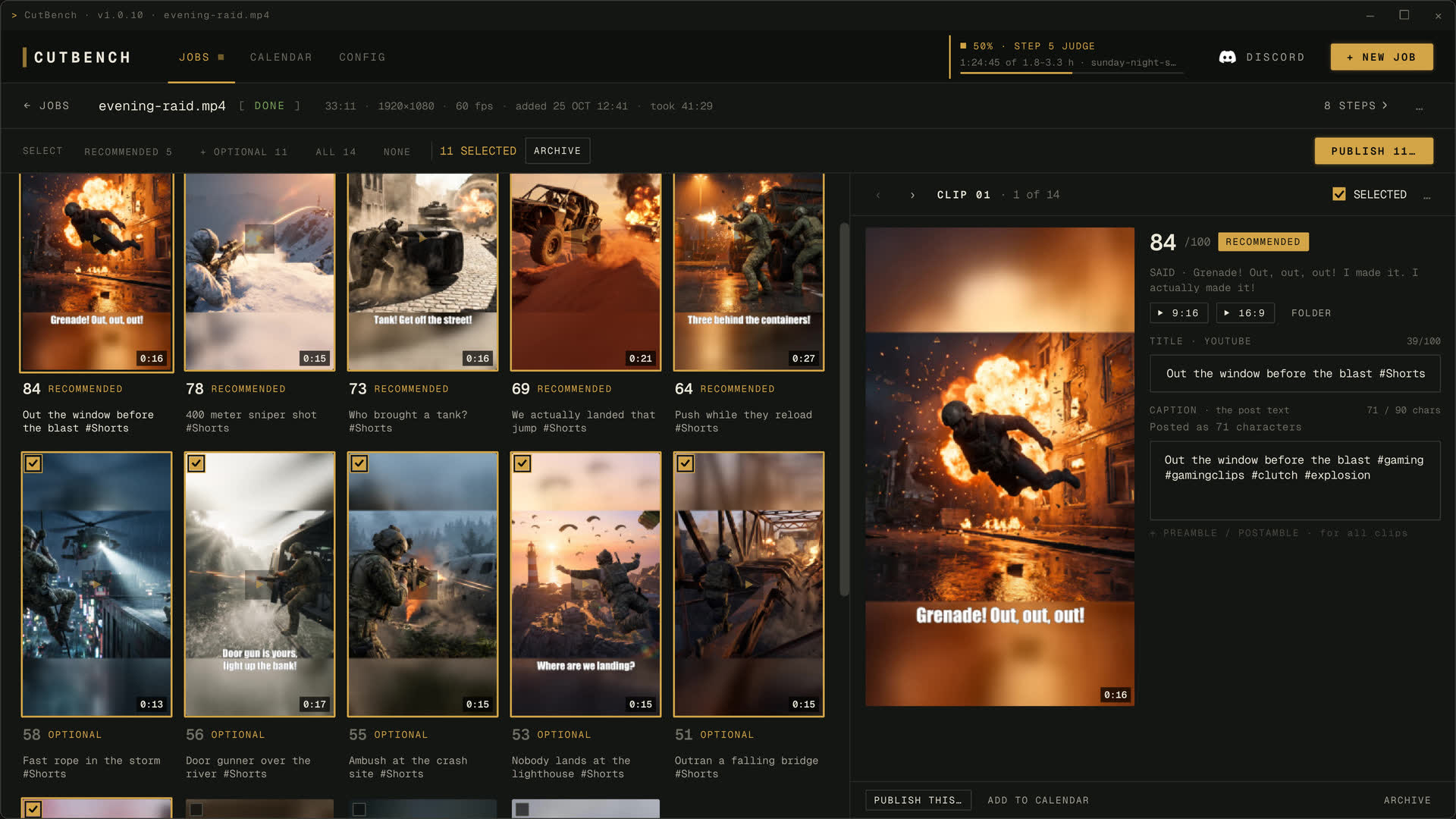
There is no list of supported games: CutBench works from the recording itself, picture and sound. Quiet stretches with little happening or being said are its weak point, and an inventory or map screen can still turn up inside a clip. The number of clips depends on the recording.
Every job has its own folder, by default under %USERPROFILE%\cutbench\outputs\. … → OPEN FOLDER goes straight there, and CONFIG › OUTPUT sets another location for new jobs. Each clip's folder holds 9x16.mp4, 16x9.mp4, final.srt, thumbnail.jpg and description.txt, for the formats and text that job made.
Subtitles and post text
Subtitles follow the language spoken on the recording and are never translated. One language applies across all clips, even if the recording switches language midway. A clip with no speech gets no subtitles.
Latin, Cyrillic, Chinese, Japanese, Korean and Thai can all be burned in. Non-Latin scripts use the fonts installed on your PC, so they can look different from the preview.
The styles are CINEMA, CLASSIC, CANDY, NEON, HYPE and SLASH, placed at the top, center or bottom, with ALL CAPS and italic as options. HOOK TEXT, off by default, burns the clip's caption over its first 1.8 seconds. It is unavailable while subtitles sit at the top.
The .srt beside each clip works in most editors and players. Changing it does not change subtitles already burned into the video.
Post text means the title, description and hashtags. It comes out in the language of the recording. When CutBench can't write post text for a clip, the clip gets a stock caption, and the job page names those clips so they can be edited before posting.
Publishing
CutBench posts to YouTube and TikTok. Reels and everything else are posted by hand from the clip folder.
Connect the accounts in CONFIG › ACCOUNTS, which opens your browser. Then tick clips on the job page and press PUBLISH N… to choose the platform, the format, the time and the YouTube privacy setting.
- YouTube: the clip is uploaded to your channel.
- TikTok: the clip lands in your TikTok inbox, and the post is finished from the TikTok app.

The Posting Calendar plans a week of posts and sends each one at its time while CutBench is running. AUTO-FILL shows its plan first and takes the best clips first. The calendar sends at most 6 videos a day to YouTube, and a post over that limit moves to a day with room. If the app was closed at a post's time, a post from earlier the same day goes out at the next launch. For a post from an earlier day, CONFIG › POSTING CALENDAR sets what happens: ask first, or move to the next free slot.
Privacy
The clips are made on your PC, and the recording is not uploaded for processing. The internet is needed to download a linked video and to publish to YouTube or TikTok. Only the clips chosen for publishing go out, and they go to your own accounts.
When something goes wrong
- A job is slower than expected. CONFIG › SYSTEM shows the card that was found and how the app runs on it.
- NOT ENOUGH GRAPHICS MEMORY. Other programs may be using the card's memory. Close them and press CHECK AGAIN.
- COULD NOT REACH TWITCH or YOUTUBE. The site did not answer. If it opens in your browser only through a VPN, turn the VPN on for the whole PC.
- COULD NOT DOWNLOAD THIS VIDEO. Try again, or download the video yourself and pick the file.
- A red mark on CONFIG. A YouTube or TikTok sign-in has expired. Press SIGN IN AGAIN in CONFIG › ACCOUNTS.
- Wrong moments, or anything else. … → REPORT PROBLEM copies a report and opens Discord. CONFIG › SYSTEM has COPY REPORT and SAVE REPORT…. Reports leave out keys and account names, while file names stay in.
Questions people ask
Is there a free version, demo or trial?
No. A free demo existed at launch and has been retired.
Is CutBench a one-time purchase?
Yes. One purchase on Steam, with no subscription, no credits and no charge per clip. The current price is on the store page.
Does it add a watermark?
Not by default. An optional CutBench badge can be turned on in CONFIG › OUTPUT.
Does it work offline?
Making clips needs no internet. Downloading a linked video and publishing do.
Does it upload my recordings?
Not for processing. Only the clips chosen for publishing are uploaded.
Does CutBench work on AMD or Intel Arc?
They are outside the supported spec. The work runs on the processor, tens of times slower, and still completes.
Which games does it support?
There is no list. It works from the recording itself.
Can it clip a Twitch VOD?
Yes, from a link to your own past broadcast or from a downloaded file. A stream still live has to end first.
Does it record gameplay?
No. It reads recordings made by other tools.
What languages does it support?
Subtitles and post text come out in the language spoken on the recording. The interface is in English.
Can it post to Instagram Reels?
It makes the 9:16 file, and the post is done by hand.